Find out how to create complex shapes in this bite-sized Photoshop tutorial
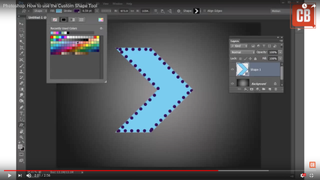
This Photoshop tutorial introduces the Custom Shape Tool.
You’ll learn everything you need to know to start adding custom shapes
to your designs and layouts – including how to use various settings such
as Fill, Stroke and more – in less than three minutes.
02. How to use the Dodge Tool
This Photoshop tutorial introduces the Dodge tool.
You'll learn how to selectively lighten areas of an image. Learn about
brush options, Range, and Exposure. Brighten eyes, pick out details, and
much more.
03. How to use the Burn Tool
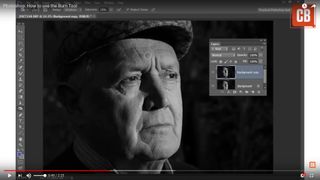
Learn how to use the Burn tool in two minutes
One of our Photoshop tutorials, hosted on the Creative Bloq YouTube channel, introduces the Burn tool.
In this easy-to-follow video, discover how to selectively darken areas
of an image, with an overview of settings and tips on working with
Shadows, Midtones and Highlights.
04. How to use Photoshop's Image Sizing tool
Being able to manipulate bitmaps enables you to create a virtually unlimited array of effects. In this tutorial, we run through how to get the best out of the Image Sizing tool in Photoshop CC.
05. Get creative with Face-Aware Liquify
Face-Aware Liquify makes caricaturing easy
The
latest version of Photoshop CC's Liquify tool has some powerful facial
recognition skills, enabling it to detect areas of the face, such as the
eyes, mouth, nose and overall face shape, so you can adjust and warp
them with impunity.
In this Face-Aware Liquify tutorial, T3 art editor Luke O'Neill, explains how to get the most of it, from simple adjustments to crazy facial distortions.
06. How to use Photoshop layers: 6 top tips
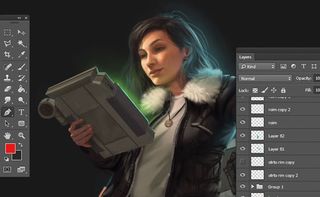
It may take a bit of time, but learning to use Photoshop's layer system is the key to unlocking the software's versatility
Learning
to use Photoshop's layer system is key to unlocking the software's
versatility. In the same way that traditional animators use several
sheets of acetate in a single shot, painting different parts of your
picture on different layers means they can be edited separately while
still being viewable as a whole.
In this Photoshop tutorial, you’ll find out how to everything from create layers to locking them, grouping them and adjusting opacity. Now watch:5 new ways of working with Photoshop layers
07. How to use Photoshop layer masks
These helpful layer mask tips will help to streamline your digital art workflow
The helpful layer mask tips in this Photoshop tutorial
will help you streamline your digital art workflow. As any Photoshop
beginner will quickly learn, layer masks are one of the most fundamental
parts of the software: without them your work will look flat. Follow
these seven tips and shortcuts to work more quickly and easily with
layer masks.
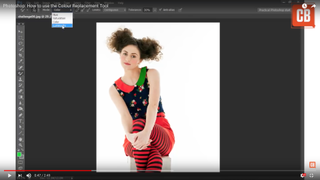
08. How to use the Colour Replacement Tool
This Photoshop tutorial shows you how to quickly replace colours
Another of our YouTube Photoshop tutorials, this short video introduces the Color Replacement Tool,
which lets you paint roughly over an area of an image. Discover how to
replace colours based on Hue, Saturation, Colour and Luminosity.
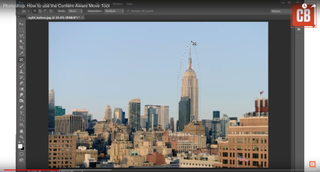
09. How to use the Content-Aware Move Tool
Get to grips with the Content-Aware Move Tool in this two-minute Photoshop tutorial
This Photoshop tutorial introduces the Content-Aware Move Tool, which lets you select pixels and move or extend them to another area of your image without the use of layers and masks.
In the easy-to-follow video, we reveal how Photoshop can analyse pixels and heal unwanted portions within an image.
Photoshop tutorials for beginners: techniques
10. Make quick selections in Photoshop
Simple cut-outs and masking tasks form the backbone of much design work in Photoshop
The
ability to perform simple cut-outs and masking tasks is a basic
requirement of any designer, and often forms the backbone of any
Photoshop work that you may undertake.
In this step-by-step Photoshop tutorial we run through three basic techniques for creating simple selections, and then cover the layer mask options and how they work a little more in depth.
11. How to customise animated GIFs in Photoshop
Alter any animated GIF to fit the style of your latest project
Animated
GIFs are a great way to make your designs more eye-catching. With
Photoshop, you can customise any animated GIF to fit the style of your
project.
This tutorial runs through three methods of customising animated GIFs in Photoshop, using adjustment layers, blending options and a more time-consuming – but flexible – frame-by-frame technique.
12. Reduce camera shake in Photoshop CC
Get to grips with Photoshop's Camera Shake Reduction filter
As
a photographer, it's inevitable that you will wind up with the
occasional blurry image. Fortunately, in Photoshop CC, Adobe has a
special 'Camera Shake Reduction' filter to help you repair these images.
Follow this Photoshop tutorial to find out how to repair your images in six easy steps.
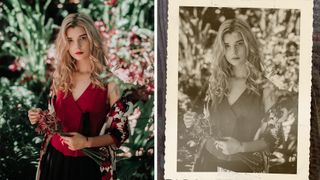
Turn any photo into an aged, sepia-toned image in Photoshop
Ageing
a photograph in Photoshop is a classic technique that can turn even a
ho-hum, full colour image into something striking. If your design work
requires a vintage look, replicating the look of a distressed old photo
digitally can work wonders.
However, it’s more than merely converting a photograph to sepia tones and calling it a day. In this article, we explore how to age a photograph using the duotone technique.
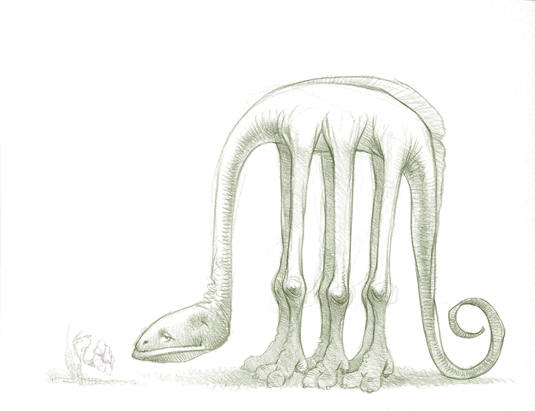
Make your hand-drawn sketches easier to work with digitally using these quick steps
Colourising
a scanned hand-drawn pencil sketch to get rid of the black lines can
save an artist lots of work and aggravation. Dark, black lines are hard
to paint over while maintaining the sketch. Thankfully, there's an easy
way to colour and soften those black lines using Photoshop – this tutorial shows you how.
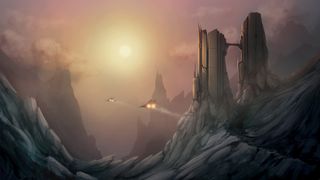
15. Turn day into night in Photoshop
Turning
this daytime scene into night was inspired by the superb effects work
in Lars von Trier's film Melancholia. Shooting landscapes at night can
present all sorts of challenges – and even more so if you were shooting a
moving image and couldn't use long exposures.
In this tutorial, Ben Secret shows you how to use Curves layers to control your tones and turn day into night.
This handy Photoshop tutorial from Adobe will show you how to make a poster from a template
in less than 60 seconds. Whether you're a beginner or just want a
(very) quick refresher, this walkthrough will have you designing posters
faster than ever.
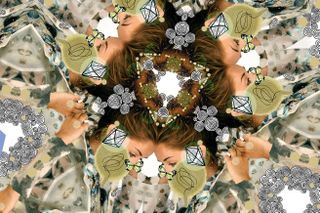
Master Photoshop's Free Transform tool
with this tutorial, and use it to warp portraits of your subjects into
comical caricatures. Making these cartoon-like photos is a great way to
get creative, and will help you become more familiar with the Free
Transform tool.
18. Digital painting with Photoshop CC for beginners
Get to grips with digital painting in Photoshop with this handy guide
If
you can work on a canvas with paints, then many of the same painting
techniques you use will transfer directly over to digitally painting in
Photoshop. Core principles such as composition, colour theory and
perspective still apply. This Photoshop tutorial for beginners breaks
down the process of creating a simple digital painting, from start to finish.
Using
a combination of Photoshop and Lightroom, here you'll discover a few
ways to add frames and borders around your photos. The workflow includes
using tools such as Photoshop blend modes, custom brushes and layer
styles.
While
Photoshop is best known as a photo editor, it also includes some
powerful video editing tools. In this short, simple tutorial, learn how
to use the timeline panel to apply smart filters and adjustment layers
to your videos.
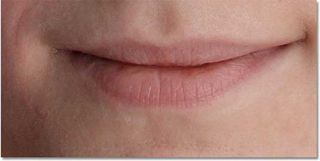
Learn how to repair lips with the Spot Healing brush
Everyone
wants to look their best and in this tutorial you'll be able to do just
that. You'll learn how to remove any skin blemishes, acne or any other
problems to create the perfect image.
If
you want to know about the Skin Aware technology in CS6 then this is
the tutorial for you. Learn how to quickly select skin tones and get to
grips with this awesome feature.
25. How to change eye colour in Photoshop CS6
Check out this quick two-minute tutorial, which will show you how to change a subject's eye colour.
26. Take care of fly-away hairs
This super time saving tutorial will teach you how to get rid of stray and fly-away hairs using the dust and scratches filters.
27. Change hair colour in Photoshop CS6
Here,
you'll discover how to use the new tools of Photoshop CS6 to change any
hair colour. From blonde to red and brown to green, the choices are
endless!
Create
out-of-focus highlights from scratch with a little help from Photoshop
CS6's new time-saving shortcuts, in this easy to follow, four-step
tutorial.
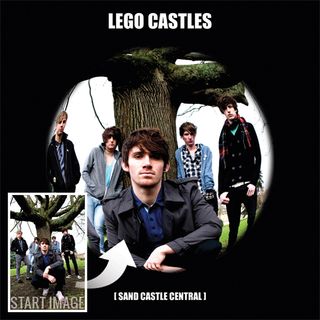
Combine
a number of different simple but effective techniques to imitate the
retro, lo-fi toy camera look, using simulated light leakage and a
vignette in Photoshop.
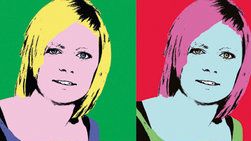
Create an Andy Warhol-style multi-image pop art picture
Convert
a bland portrait into a pop art masterpiece to get creative and enliven
your forgettable shots. For this tutorial, we'll be using Photoshop
filters, selection tools, Adjustment Layers and Layer Masks, and the
Hue/Saturation command.
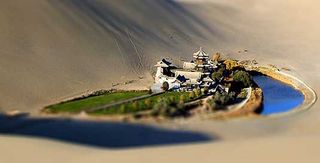
Tilt-shift photography refers to the use of camera movements on small and medium format cameras. The guys at animhut show you how to re-create this effect using Photoshop CS6.
Tony
Aube demonstrates how to add a dramatic rain effect to a photo in
Photoshop, then goes a step further and shows how to make the image more
photorealistic by adding reflections and small puddles.
You can create all manner of images and effects in Photoshop CC
Here
we'll show you how to create a single 'tile' for a repeating pattern
for the stripes; then you can fill as big or as small an area as you
like with it...
Don't
have a smartphone but long to create those vintage Instagram effects on
your photos? This simple and quick tutorial will show what effects to
add to accomplish an easy 'Instagram look'.
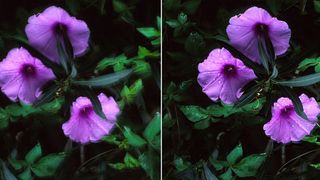
Want
to mix black and white imagery with a bit of colour? This three-minute
tutorial will show you exactly how to isolate a specific colour in your
photos. Feeling more confident? Head to the next page for some intermediate-level Photoshop tutorials.
 photoshop



Komentar
Posting Komentar